


Face ID is one of the most useful features on an iPhone. It lets you unlock your phone, sign in to apps, approve Apple Pay purchases, and autofill passwords with just a glance. Most of the time, it works quickly and accurately, so you hardly think about it.
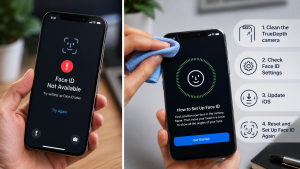
If Face ID suddenly stops working, it can be frustrating. Your iPhone may fail to recognize your face, display a “Face ID Is Not Available” message, or ask you to enter your passcode every time you unlock your device.
The good news is that Face ID problems are often easy to fix. In many cases, the issue is caused by a software glitch, dirty sensors, incorrect settings, or a recent iOS update—not a serious hardware problem.
In this article, we’ll explain the most common reasons why Face ID stops working on an iPhone and show you simple steps to get it working again.
1. Your iPhone Needs a Restart
Sometimes Face ID stops working because of a temporary software glitch.
Restarting your iPhone refreshes the system and can solve many small issues.
How to fix it
- Turn your iPhone off.
- Wait about 30 seconds.
- Turn it back on.
- Try using Face ID again.
This simple step often solves the problem.
2. The Front Camera Is Dirty
Face ID uses the TrueDepth camera at the top of your iPhone.
If the camera is covered with dust, fingerprints, or dirt, it may not be able to scan your face correctly.
Solution
Clean the front of your iPhone with a soft microfiber cloth.
Avoid using paper towels or harsh cleaning products that could damage the screen.
3. Your Face Is Covered
Face ID needs to clearly see your face.
It may not work properly if you’re wearing:
- A face mask
- Large sunglasses
- A helmet
- A scarf covering your face
Try removing anything that blocks your face and scan again.
4. There’s a Problem After an iOS Update
Some users notice Face ID issues after installing a new version of iOS.
Although Apple usually fixes these bugs quickly, they can happen from time to time.
What you should do
- Go to Settings > General > Software Update.
- Install the latest available update.
- Restart your iPhone after updating.
5. Face ID Is Turned Off
Sometimes Face ID isn’t broken—it has simply been disabled.
To check:
- Open Settings.
- Tap Face ID & Passcode.
- Enter your passcode.
Make sure Face ID is enabled for:
- iPhone Unlock
- Apple Pay
- App Store
- Password AutoFill
Turn on any options that are disabled.
6. You’re Holding the iPhone Incorrectly
Face ID works best when the iPhone is held naturally in front of your face.
If it’s too close, too far away, or at an unusual angle, your iPhone may not recognize you.
Hold your phone about an arm’s length away and look directly at the screen.
7. Your Appearance Has Changed
Face ID learns small changes over time, but major changes can sometimes affect recognition.
Examples include:
- Growing a beard
- Shaving a beard
- Wearing new glasses
- Heavy makeup
- Significant weight loss
If Face ID has trouble recognizing you, resetting it usually helps.
8. Face ID Needs to Be Set Up Again
Sometimes the saved Face ID data becomes corrupted.
Resetting Face ID creates a new facial scan.
Here’s how
- Open Settings.
- Tap Face ID & Passcode.
- Tap Reset Face ID.
- Tap Set Up Face ID.
- Follow the instructions on the screen.
9. A Screen Protector or Case Is Blocking the Camera
Some thick screen protectors or poorly fitting phone cases can cover part of the TrueDepth camera.
If Face ID stopped working after installing a new accessory, remove it and test Face ID again.
If it starts working, consider replacing the accessory with one designed specifically for your iPhone model.
10. Your iPhone Was Dropped
If your iPhone recently fell or was damaged, the TrueDepth camera may have been affected.
Even if the screen looks fine, internal components can stop working after an impact.
If Face ID stopped working after a drop, the device may need professional repair.
11. Water Damage
Although many iPhones are water-resistant, they are not completely waterproof.
If water gets inside the phone, it can damage the Face ID components.
If your iPhone has been exposed to water and Face ID no longer works, it’s best to have it inspected by a repair professional.
12. There Could Be a Hardware Problem
If you’ve tried every solution and Face ID still doesn’t work, there may be a hardware fault.
Some signs include:
- Face ID setup won’t complete.
- You keep seeing “Face ID Is Not Available.”
- The front camera isn’t working properly.
- Face ID stopped working after a repair.
In these situations, professional service is usually the best option.
How to Fix Face ID on iPhone
Before taking your iPhone for repair, try these simple steps:
- Restart your iPhone.
- Clean the front camera.
- Remove any case or screen protector blocking the sensors.
- Check that Face ID is enabled in Settings.
- Install the latest iOS update.
- Reset Face ID and set it up again.
- Test Face ID in good lighting.
These solutions fix most Face ID problems.
Tips to Keep Face ID Working Properly
You can avoid many Face ID issues by following a few simple habits:
- Keep your iPhone updated.
- Clean the front camera regularly.
- Use a good-quality screen protector.
- Protect your phone from drops.
- Avoid exposing your iPhone to water.
- Reset Face ID if your appearance changes significantly.
Why Choose Just Fix?
At Just Fix, we make technology easier to understand. Our goal is to provide simple, accurate, and practical guides that help you solve everyday iPhone and smartphone problems without confusing technical language.
Whether you’re dealing with Face ID issues, charging problems, battery drain, or software errors, our step-by-step articles are designed to help you find the cause and fix the problem as quickly as possible.
We believe that reliable tech advice should be easy for everyone to follow.
Final Thoughts
Face ID is one of the most convenient features on an iPhone, but it isn’t perfect. Most of the time, when Face ID stops working, the cause is something simple like a dirty camera, a software issue, or incorrect settings.
Start by trying the basic fixes in this guide. A quick restart, cleaning the camera, or resetting Face ID is often all it takes to get things working again.
If none of these solutions help, especially after your iPhone has been dropped or exposed to water, it’s a good idea to have the device checked by a qualified technician.
With the right troubleshooting steps, you can usually get Face ID working again and continue using your iPhone without interruption.
Frequently Asked Questions
Why did Face ID suddenly stop working?
It could be caused by a software bug, dirty sensors, incorrect settings, a recent iOS update, or hardware damage.
Can restarting my iPhone fix Face ID?
Yes. Restarting often fixes temporary software issues that affect Face ID.
Can a cracked screen stop Face ID from working?
Yes. If the damage affects the TrueDepth camera system, Face ID may stop working.
Does Face ID stop working after replacing the screen?
It can if the repair wasn’t done properly or if incompatible parts were used.